Goodbye Windows 11: Switching To Linux
Windows 11 represents a fundamental shift in Microsoft’s relationship with its users – from operating system provider to advertising platform operator and data harvester. For business users, the implications are severe.
Windows 11 has taught us that Microsoft cannot be trusted to act in users’ interests when those interests conflict with their commercial goals.
- Forced Apps and Bloatware
- Background Downloads and Bandwidth Theft
- Battery Drain and Performance Degradation
- Windows Recall: Privacy Nightmare
- BitLocker Keys Given to Law Enforcement
- Forced Updates and Settings Changes
- Forced Microsoft Account
- Microsoft Edge Forcing
- System Requirements and E-Waste
- Telemetry and Data Collection
- Start Menu Advertisements
- Making the Switch to Linux
- Conclusion
Trust Violations
- Forced Microsoft account requirements eliminate user autonomy
- Settings regularly changed through updates without consent
- Aggressive Edge browser enforcement ignores user preferences
- Recall feature creates massive security and privacy risks
- BitLocker keys handed to law enforcement undermines encryption security
Business Impact
- Troubleshooting overhead: Increased time spent fixing post-update setting changes
- Productivity losses: Forced restarts and multi-hour updates disrupt workflows
- Browser hijacking: Default browser settings require constant vigilance
- Data exposure: Extensive telemetry collection regardless of opt-out attempts
- Background downloads: Bandwidth and disk space consumed without consent
- Performance degradation: Battery drain and CPU spikes from background processes
Environmental Irresponsibility
- 240-400 million functional PCs destined for landfill due to arbitrary TPM 2.0 requirements
- Windows 10 end-of-life in October 2025 forces unnecessary hardware upgrades
- Microsoft’s sustainability commitments exposed as hollow marketing
Monetisation Takes Priority Over Users
- Advertisements embedded in the Start menu
- Bloatware pre-installed and reinstalled through updates
- Continuous upselling of Microsoft 365 and OneDrive
- Advertising IDs and tracking enabled by default
An operating system that actively works against its users’ interests whilst prioritising Microsoft’s revenue streams. For business environments where stability, predictability, and user control are paramount, Windows 11 represents an unacceptable risk.
1. Forced Apps & Bloatware
The forced inclusion of apps and bloatware in Windows 11 further highlights the disconnect between user needs and Microsoft’s profit motives. This not only clutters the user experience but also consumes valuable system resources. For those seeking a more streamlined and user-centric experience, it’s time to switch to Linux, where control and customisation are prioritised. By making the transition, users can reclaim their operating system and foster a more secure and efficient working environment.
Even on fresh installations, users face a mix of preinstalled apps including TikTok, WhatsApp, gaming apps, Microsoft Solitaire, Clipchamp, and numerous other applications that consume storage space and system resources. The PDQ blog notes that the lack of clear documentation about these packages from Microsoft means most relevant information comes from system administrators documenting their processes through trial and error.
Ghost Apps and Quick Installers
Worse still, Microsoft employs “quick installer” or “ghost apps” – links to installers rather than actual installed applications that appear on the Start menu, including ESPN, Instagram, and TikTok. These consume visual space and serve as constant advertising for Microsoft’s app store partners.
The Security Risk
For business users, the problem compounds. New, unwanted apps can arrive from system updates and bundled with other software. As we’ve discussed in our guide on debunking website security myths, pre-installed software often opens devices up to exploitation through unpatched security vulnerabilities.
NinjaOne reports that bloatware opens a device up to exploitation through unpatched security vulnerabilities, making it not just an annoyance but a genuine security risk.
Microsoft’s Half-Hearted Solutions
The Windows 11 25H2 update promised improved bloatware removal, but WindowsForum notes that even with Microsoft loosening restrictions, forcibly removing certain apps with deep system hooks still poses risks to OS stability and update compatibility.
Third-party debloating tools like Win11Debloat and various PowerShell scripts have become essential for system administrators, highlighting how far Microsoft has strayed from providing a clean, user-focused experience out of the box.
2. Background Downloads & Bandwidth Theft
Windows 11 aggressively downloads updates in the background, consuming both disk space and bandwidth without explicit user permission. This represents a fundamental disrespect for users’ resources and network constraints, particularly problematic for those working remotely or on metered connections.
The Windows Club explains that background downloads are involuntarily conducted by your operating system, usually updates done on Windows that are automatically downloaded without asking for permission or any interaction with the user.
The Disk Space Problem
Microsoft’s own documentation states that feature updates require 6 GB to 11 GB or more of free space, while quality updates require 2 GB to 3 GB or more. For users with limited disk space, particularly those with smaller SSDs common in budget laptops, this creates a constant battle.
Windows downloads these massive updates automatically, then complains when there isn’t enough space to install them. Users report errors like “Setup ran out of disk space” after Windows has already consumed gigabytes downloading the update.
Bandwidth Consumption
The bandwidth impact is equally severe. Windows Central notes that Windows 11 can automatically control and optimize the bandwidth for downloads and uploads of updates, Microsoft Store apps, and other products. The caveat with the approach is that Windows 11 is unaware of any network activity outside the computer.
This means Windows will happily consume your entire internet connection downloading updates, regardless of what else you’re trying to do. For users on metered connections, cellular data, or limited bandwidth, this can result in:
- Unexpected overage charges on metered connections
- Degraded performance for video calls and streaming
- Failed VPN connections during critical work
- Bandwidth exhaustion on shared connections
The Hidden Upload Problem
Even worse, Windows uses Delivery Optimization, which identifies the best source for your download and dynamically optimizes how much bandwidth your PC uses in the process. What Microsoft doesn’t prominently advertise is that this can turn your PC into an update server, uploading updates to other computers on the internet and consuming your upload bandwidth.
Mitigation Requires Technical Knowledge
Whilst bandwidth limits can be set, doing so requires navigating through multiple settings menus and understanding concepts like “foreground vs background downloads” and “delivery optimization.” The average user has no idea these settings exist, and Microsoft benefits from that ignorance.
For developers and IT professionals familiar with automation through Python, these forced downloads represent yet another system behaviour that requires scripting and workarounds to control.
3. Battery Drain and Performance Degradation
Windows 11 updates and background processes create severe performance and battery life problems that Microsoft rarely acknowledges. For mobile professionals relying on battery-powered laptops, these issues directly impact productivity and require constant management.
GeekChamp identifies a key culprit: “Windows Updates and Scheduled Tasks: Background system updates or scheduled maintenance tasks can occasionally cause spikes in resource utilization, impacting battery life temporarily.”
The word “temporarily” is misleading. Many users report persistent battery drain issues after Windows 11 installation or major updates.
CPU Spikes and Disk Thrashing
Beebom notes that Windows Update is notorious for causing high CPU spikes. But this is exactly the problem – you shouldn’t need to disable core functionality of your operating system to get acceptable performance.
The background processes that Windows 11 runs include:
- Telemetry collection sending usage data to Microsoft
- Delivery Optimization uploading and downloading updates
- Windows Defender scanning during inconvenient times
- SysMain (formerly Superfetch) consuming memory and disk
- Compatibility Telemetry Runner gathering system data
- Background apps Microsoft pre-installs
Real-World Impact
One Windows Forum user reported that even on newer hardware, battery life plummeted after upgrading to Windows 11. The problem is so pervasive that Windows Central has published detailed guides on identifying which apps are draining batteries.
The Business Cost
For mobile professionals, these performance issues translate directly into reduced battery life requiring more frequent charging, interrupted workflows when performance degrades unexpectedly, lost productivity during CPU spike events, and reduced hardware lifespan from constant high-load operation.
You cannot trust Windows 11 to manage your system resources efficiently. It prioritises Microsoft’s data collection and update distribution over your actual work. This stands in stark contrast to efficient development workflows where resource management is optimised for productivity.
4. Windows Recall: A Privacy and Security Nightmare
Perhaps no feature better encapsulates Windows 11’s privacy problems than Recall. Initially announced in May 2024, Recall takes screenshots of your desktop every few seconds, storing them in a searchable database. The backlash was immediate and severe, with security professionals universally condemning the approach.
Privacy advocates and security experts voiced concerns over the potential for Recall to inadvertently capture sensitive information, such as passwords, confidential documents, and personal data. Computerworld reported that security experts described it as “a risk in its entirety, and I can’t imagine any security or privacy controls making me comfortable with having it activated on a system I use.”
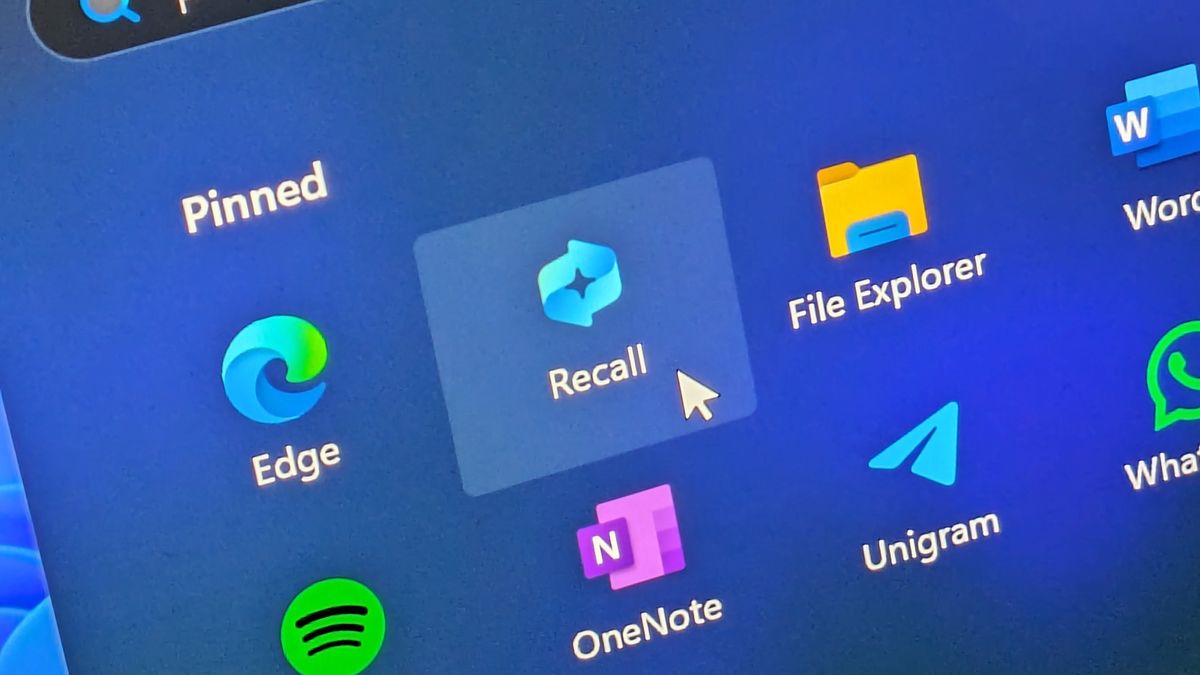
The technical reality is even more concerning. Ethical hacker Alexander Hagenah developed a command-line tool called TotalRecall that could extract and display data from the Recall database in Windows 11, exposing sensitive information about a PC’s activity and previous snapshots. The initial version saved all data to a plaintext database, making theft trivially easy.
Encryption Doesn’t Fix the Fundamental Flaws
Even after Microsoft delayed the feature and added encryption, testing revealed fundamental flaws. Independent testing revealed that Windows 11 Recall’s “Filter sensitive information” feature still misses highly sensitive data, including credit card numbers, bank account balances, Social Security numbers and even passwords.
Jetico notes that if sensitive details aren’t categorised in a way the filter expects, such as an unlabelled card number or a password that doesn’t contain the word ‘password’ beside it, Recall will still capture them.
The Industry Response
The response from privacy-focused applications has been telling. Signal published a feature for Signal Desktop that includes a “Screen security” setting, blocking Recall from taking screenshots of Signal chats on Windows, with the setting enabled by default when using Signal Desktop on Windows 11. Brave and AdGuard added similar functionality in July 2025.
For businesses handling confidential data, Recall represents an unacceptable risk, even in its “improved” form. The fact that users handling confidential or regulated data face potential privacy and security risks from local snapshots of user activity makes deployment a compliance nightmare for any organisation subject to GDPR, HIPAA, or similar regulations.
As we’ve covered in our article on how hackers avoid detection, features like Recall create additional attack surfaces that sophisticated attackers can exploit to exfiltrate sensitive data.
5. BitLocker Keys Given to Law Enforcement
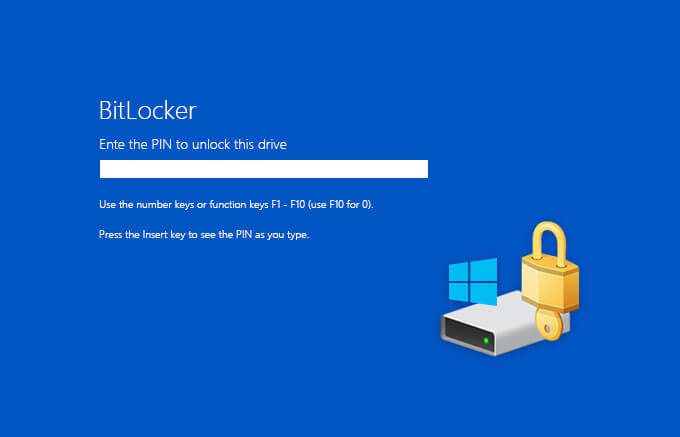
In January 2026, it emerged that Microsoft had provided the FBI with BitLocker encryption recovery keys to unlock suspects’ laptops, fundamentally undermining the security promise of full-disk encryption. This revelation represents perhaps the most serious betrayal of user trust in Windows 11’s entire catalogue of problems.
TechRepublic reported that Microsoft provided the FBI with BitLocker recovery keys that allowed investigators to unlock data on three encrypted laptops. The request came through a valid search warrant issued in a federal investigation in Guam into alleged fraud in the island’s COVID-19 unemployment assistance program.
The Scale of the Problem
This wasn’t an isolated incident. Microsoft disclosed in its transparency report that in the latter half of 2023, the company turned over customer BitLocker encryption recovery keys to U.S. law enforcement 703 times. The data reveals that Microsoft complied with 96% of the 730 legal demands it received for these specific, highly sensitive credentials.
Let that sink in: 703 times in six months. This isn’t about catching terrorists – it’s routine law enforcement access to encrypted drives.
How It Works (Against You)
The architectural choice is deliberate. When you set up a Windows 11 PC with a Microsoft account, recovery keys are automatically uploaded to Microsoft’s cloud servers.
Most users have no idea this is happening. They think their data is encrypted and secure. Instead, TechPlanet explains that BitLocker, enabled by default on most Windows 10/11 machines with Microsoft accounts, quietly uploads your recovery keys to the cloud unencrypted.
The Expert Consensus
Cryptography experts are unequivocal. Matthew Green of Johns Hopkins University stated: “This is private data on a private computer, and they made an architectural choice to hold access to that data. They absolutely should be treating it as something that belongs to the user.”
The ACLU’s Jennifer Granick called remote key storage “quite dangerous,” whilst Senator Ron Wyden deemed the practice “simply irresponsible.”
The Comparison to Apple
The contrast with competitors is stark. Apple offers Advanced Data Protection for iCloud – an opt-in feature that encrypts backups with keys only users control, rendering Apple unable to comply with law enforcement requests for such data. Google follows a similar approach. Microsoft chose differently.
This architectural choice matters for security-conscious developers and businesses who require genuine encryption, not security theatre.
Why This Matters for Business
For business users, this revelation has profound implications. If you’re a lawyer, accountant, doctor, or journalist with client data, your BitLocker-encrypted laptop is not secure if Microsoft has the keys.
Client Confidentiality: Your encrypted laptop provides no real protection if competitors or foreign governments could potentially compel Microsoft to provide keys through legal channels.
Trade Secrets: Many regulatory frameworks require that encryption keys be under exclusive control of the data owner. Microsoft’s architecture violates this principle.
International Risk: Countries outside the United States have limited recourse when U.S. law enforcement requests data from American companies, creating sovereignty issues.
The Erosion of Trust
This isn’t about protecting criminals – it’s about whether encryption actually means encryption. When Microsoft can hand over your keys, your data is not truly encrypted. It’s merely obfuscated until Microsoft decides to grant access.
The company’s response was corporate doublespeak. Microsoft spokesperson Charles Chamberlayne stated: “While key recovery offers convenience, it also carries a risk of unwanted access. Microsoft believes customers are in the best position to decide how to manage their keys.”
Except Microsoft doesn’t give users that choice during setup. The default is cloud storage, and most users don’t even know they need to opt out.
6. Forced Updates and Settings Changes
Nothing epitomises the trust breakdown with Windows 11 more than forced updates that change system settings without user consent. For business users, this is catastrophic. Imagine building efficient CI/CD pipelines only to have your carefully configured development environment disrupted by an unscheduled Windows update.
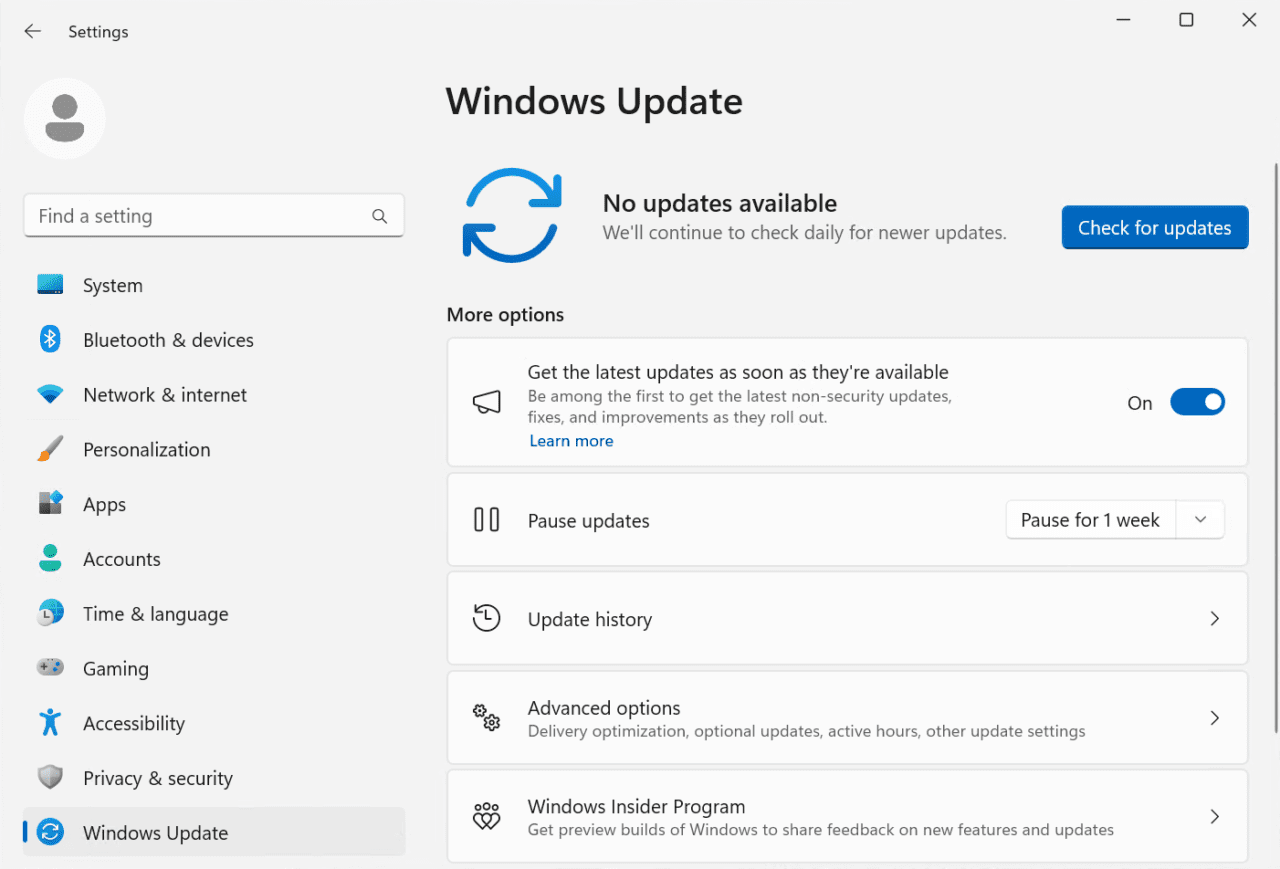
Microsoft started forcing Windows 11’s big 24H2 update on PCs in January 2025, with devices running Home and Pro editions of Windows 11, versions 23H2 and 22H2 that are not managed by IT departments receiving the update automatically. PCWorld noted users should plan on dedicating up to two hours for this Windows 11 update.
The real-world impact on professionals is severe. One developer reported: “My work computer did this last night after I clicked update and shutdown. I should have been prompted ‘Are you sure you want to upgrade your operating system to Windows 11’ before this was allowed to happen. I am developing medical software that uses custom drivers. Upgrading to a new OS is likely to break a lot of stuff in my dev environment. Luckily I was able to roll back to Windows 10. I could have lost weeks of work.”
The Settings Reversion Problem
Even more frustrating are the persistent reports of settings reverting after updates. Users report that after setting their default browser to Chrome “about 80 times now in app settings,” every time they click on a link someone sends them via email or Teams, it opens in Edge.
Another user states: “I have set my default browser to Firefox, for the last 5 days, as every morning I turn on my PC, it has defaulted back to bloody EDGE!”
The Ultimate Disrespect
Microsoft’s approach to forced updates shows complete disregard for user autonomy. One user reported that after 2 years of me turning down Windows 11 daily and weekly a Windows 10 installation installed Windows 11 without my consent or even warning me costing me another 30 hours of my time.
For business environments, the implications are clear: you cannot trust Windows 11 to maintain your carefully configured settings. Every update brings the risk of default browser reverting to Edge, privacy settings being reset, features being re-enabled that were deliberately disabled, unexpected reboots interrupting critical work, and hours of reconfiguration time.
The Register reports that Microsoft expects users to be on Windows 11 23H2, stating: “Moving to Windows 11, version 23H2 keeps your device supported and receiving monthly updates that are critical to security and ecosystem health.” The subtext: your preferences are irrelevant.
7. Forced Microsoft Accounts
Windows 11’s requirement for a Microsoft account during installation represents a fundamental shift from user-owned device to Microsoft-controlled platform. The company has systematically eliminated workarounds, demonstrating their determination to force cloud connectivity. This approach contradicts basic principles of domain-driven development where control and boundaries are clearly defined.
Microsoft has announced that it’s tripling down on blocking users from bypassing signing in with a Microsoft account on Windows 11 when setting up a PC for the first time, stating that a Microsoft account and internet connection are non-negotiable when progressing through the out of box experience.
The Systematic Removal of Workarounds
The once-popular OOBE/BYPASSNRO command was removed from the OS months ago, and now the start ms-cxh:localonly command will no longer show you a local account creation screen. Windows Central notes that bypasses still exist but will require editing the Windows image directly before installation, which involves setting up an unattended install with a local account attached, which is a lot more complicated for most users.
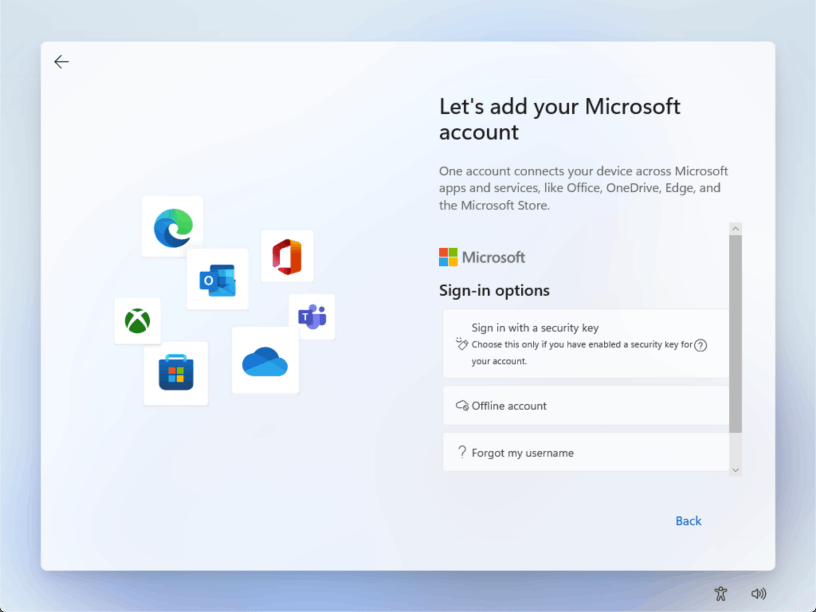
The justification rings hollow. Microsoft claims this ensures “the device is setup correctly,” but users and IT professionals see through this. One commenter on Bleeping Computer articulates the real issue: “Forcing Microsoft accounts on users doesn’t enhance security, it expands the vulnerability footprint from the physical device to anyone anywhere in the world can now gain access to what used to be local only storage.”
The Security Implications Are Real
The security implications are real. One user reported being the target of a brute force attack on their Microsoft account, with a dozen or more attempts daily from IP addresses all over the world for at least 12 months, noting that Microsoft doesn’t offer geolocation policies to consumers to mitigate these attacks.
For business environments, the requirement creates deployment headaches. In a domain environment, no one wants to create random Microsoft accounts just to finish setup – it’s pointless and breaks standard deployment workflows.
Tom’s Hardware explains that for builds 26100 and 26200 and beyond (and eventually the next release build), you must use the start ms-cxh:localonly method, which is similar but requires a different command. The cat-and-mouse game continues, with Microsoft dedicating engineering resources to preventing users from having local accounts on hardware they’ve purchased.
8. Microsoft Edge The Browser You Can’t Escape
Microsoft’s aggressive tactics to force Edge as the default browser exemplify their disregard for user choice. Despite users explicitly setting alternative browsers, Windows 11 repeatedly opens Edge through various system components. This level of anti-competitive behaviour undermines trust and wastes users’ time.
Windows 11 introduced a new workflow for switching default browsers where users must assign a default browser for each file or link type (HTM, HTML, PDF, HTTP, HTTPS, etc), a process that takes longer than it did on Windows 10. This deliberately adds friction to changing browsers.
Even after painstakingly configuring every file type, problems persist. Clicking some links in Settings will open in your chosen browser, and others will open in Edge. The search bar in the Widgets panel will take you to Edge, as will the web search and search suggestions in the Search widget. Files such as SVG, XHTML, and XHT will always open in Edge, regardless of user preferences.
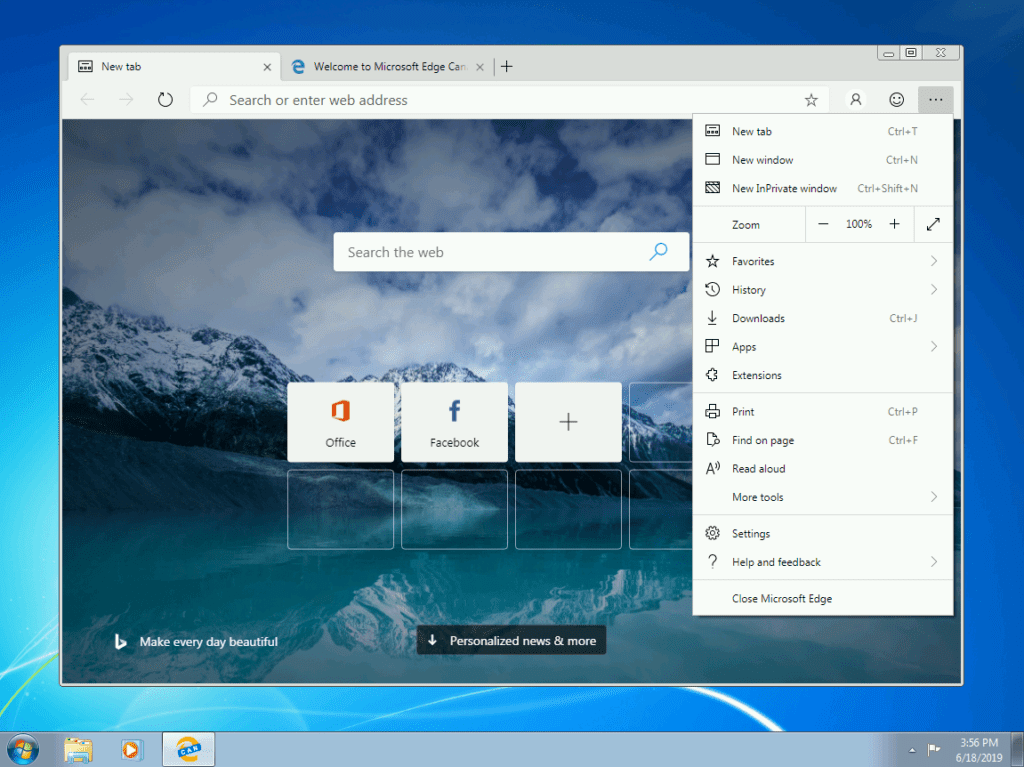
Microsoft has actively blocked third-party solutions. The microsoft-edge: URI scheme that handles web links from within Windows 11 can no longer be overridden with tools like EdgeDeflector following the release of Windows 11 build 22494.
Neowin reports that EdgeDeflector developer Daniel Aleksandersen stated: “Windows 11 now blocks third-parties from interception microsoft-edge:// links. I don’t have any non-destructive workarounds for this at this time.”
Mozilla’s response was diplomatic but pointed: “People deserve choice, they should have the ability to simply and easily set defaults and their choice of default browser should be respected.”
Only European Union regulations have forced Microsoft to back down slightly. As part of its efforts to make Windows compliant with the Digital Markets Act, Microsoft announced changes coming to Windows 10 and Windows 11 that will reduce its insistence on using first party apps and services for users in the European Economic Area. The rest of the world continues to face Edge forcing.
MakeUseOf explains that it’s unlikely that fixing this problem is high on Microsoft’s list of things to do, as the company has made no secret of wanting to encourage more users to switch to using the Edge browser, and this discrepancy in how Windows 11 defines the default browser only serves this aim.
9. E-Waste: Environmental Hypocrisy
Windows 11’s arbitrary TPM 2.0 requirement is creating an environmental catastrophe whilst exposing Microsoft’s sustainability claims as hollow marketing. The forced obsolescence of functional hardware contradicts every principle of sustainable technology and responsible resource management.
Canalys believes that a staggering 240 million PCs do not comply with Windows 11’s requirements and are set to be rendered obsolete by Windows 10’s October 14, 2025 support deadline. Reuters estimates this dump would equate to approximately 480 million kilograms of e-waste.

Tom’s Hardware notes that while recycling remains a viable option for these systems, the lack of compatibility with the latest Windows iteration significantly devalues them, making refurbishment less feasible, and consequently, despite growing capabilities in the refurbishment sector, many of these devices are still destined for landfills.
The User Perspective
One frustrated user on Microsoft’s own Q&A forum articulates the absurdity: “I have a desktop and laptop that are fully capable of doing the workload I need. Neither is upgradeable to Windows 11. However, I have no desire or need to use the Windows 11 features that require these hardware features. I don’t know anyone who does. Yet, Microsoft insists I throw my systems away.”
The scale is unprecedented. As one commenter puts it: “These 240 million PCs bound for landfills comprise the largest e-waste dump in human history. Microsoft, with a decision that could be fixed in code in a matter of weeks, has caused the largest ecological catastrophe in human history.”
The Performance Paradox
The irony runs deep. Microsoft telling people to throw out their old PC to buy new ones is really wasteful, as when Windows 11 24H2 dropped, some people gave it a go on older hardware and were surprised when it turns out that 24H2 actually made it run better. The hardware power isn’t the issue – the performance boost was felt across all PCs. The Windows 11 upgrade problem really isn’t a problem with hardware power.
UK green technology pioneer In2tec warns that many capable PCs face obsolescence thanks to what experts have called ‘arbitrary’ system requirements, risking a massive spike in e-waste as users discard them – even though they’re perfectly capable of running Windows 11. The company states: “Microsoft is cynically and wastefully prioritising new PC sales over the planet, despite claiming environmental sustainability is a ‘core value’.”
TechSpot points out a crucial detail: Microsoft has already announced it will offer extended security updates for Windows 10 to 2028, though continuing EOL coverage is neither free nor cheap, with only a fraction of customers, primarily businesses, willing to shell out for it.
The environmental impact goes beyond landfills. Hard drives and other components provide materials manufacturers can use in EV production or power generation structures like windmills, with recyclers able to reclaim metals such as lithium, cobalt, nickel, and copper from batteries inside discarded computers. But premature obsolescence means this transition happens years before it’s technically necessary.
10. Telemetry and Data Collection
Windows 11’s telemetry system represents Microsoft’s most comprehensive data collection effort to date, with “privacy by design” serving as marketing rather than reality. The extent of data collection rivals social media platforms, yet occurs on an operating system users have purchased.
Perhaps the most controversial aspect of Windows 11 is its default telemetry framework, where telemetry is Microsoft’s automated mechanism for sending diagnostic and usage data from your device back to its own servers.
The Windows Forum notes that required telemetry covers essential health data of your device and critical error reports needed for system stability and updates, whilst optional telemetry includes browsing history, enhanced error reporting, app usage, and sometimes even more granular action tracking.
The concerning reality is that even with best practices, some telemetry can only be disabled through enterprise (LTSC) editions, third-party tools, or registry hacks, with particularly concerning ‘non-negotiable’ data including health checks, basic diagnostics, and periodic software inventory still reaching Microsoft servers regardless of local settings.
The Frustration
One technical blogger explains the frustration succinctly: “Let’s be honest: Microsoft isn’t collecting this data to improve our experience. They’ve had years of telemetry coming in from millions of users, and Windows 11 still has a broken Start menu, upsell, ads, more friction, and fewer user options than Windows 10.”
The data collection extends beyond the operating system. Windows 11 includes a unique advertising ID linked to your Microsoft account that allows Microsoft to show you targeted ads, turned on by default even if you never touch the Microsoft Store.
For business users, the compliance implications are severe. Data sovereignty concerns remain acute for non-U.S. customers, especially those in sensitive government or enterprise sectors, as even anonymised data routed through U.S.-based servers can present compliance challenges.
The technical methods for limiting telemetry are deliberately complex. PDQ notes that modifying the Windows registry to disable telemetry can be dangerous if you don’t know what you’re doing, requiring users to navigate to obscure registry keys and modify DWORD values – hardly user-friendly for the average person.
Privacy Guides observes that Windows 11 is growing increasingly hostile towards privacy, with their comprehensive mitigation guide applicable only to Pro, Education, and Enterprise editions – Windows 11 Home users face even fewer controls.
The Windows Forum summarises the situation: “Network-based firewalls, registry hacks, and third-party privacy tools exist, offering more aggressive strategies to dampen or block telemetry, however, these approaches often come with side effects, such as broken update mechanisms or reduced system functionality.”
11. Start Menu Advertisements: Monetising Your Desktop
Microsoft has transformed the Windows 11 Start menu into an advertising platform, displaying “promoted” apps alongside your actual applications – on an operating system you’ve purchased. This represents a fundamental shift in how Microsoft views its relationship with users: not as customers who bought a product, but as advertising inventory to be monetised.
The advertisements come in the form of “recommendations,” suggesting users install promoted apps in the Microsoft Store, appearing under the “Recommended” tab where recently used files and apps are shown, blending into the Start menu.
The Register notes this change arrived not long after Microsoft’s CEO of advertising and Web Services Mikhail Parakhin promised to “make the Start menu great again.”
PCWorld was blunt in their assessment: “Microsoft is pushing advertising into every possible corner of Windows 11 that it can find, and the Start menu is definitely not a safe space.”
They note that in a shockingly short amount of time, functionality pushed to Windows Insider builds showing “Promoted” applications has been pushed into the current Windows 11 wide release build.
You Paid for This
The implementation is particularly egregious. “Promoted” apps are coming to the Recommended section of the Start menu in Windows 11, a piece of software that you paid for. PCWorld correctly observes that advertising isn’t bad in concept – it’s how this website stays in business, for example – but Windows is still a product that you pay real money for, either outright via a licence or as an extra cost of buying a PC.
Windows Central notes that you can find advertisements on the Lock screen, as pre-installed apps you’ve never used pinned to the Start menu, service promotions such as OneDrive in File Explorer, and features and content suggestions in the Settings app. The monetisation is pervasive.
Whilst Microsoft provides a toggle to disable Start menu ads (Settings > Personalisation > Start > “Show recommendations for tips, app promotions, and more”), hopefully this option doesn’t disappear on a future update – a realistic concern given Microsoft’s track record of removing user-friendly options.
TechRadar captured the community sentiment: “I’m not too fond of this move from Microsoft, but I guess it’s not as egregious as it could be. That’s not me trying to encourage Microsoft to push its luck further, and I think this move could already cause a lot of bad will with users.”
The Widgets board represents another advertising vector: “The Widgets board can be considered advertising on Windows 11 since Microsoft uses this feature to promote curated online content that also sells advertisements and forces you to use Microsoft Edge and Bing.”
12. Making the Switch to Linux
After cataloguing Windows 11’s betrayals, the natural question is: what’s the alternative? For many users, particularly those comfortable with technology, Linux offers a compelling solution. Modern Linux distributions have evolved dramatically, offering user-friendly experiences whilst respecting user autonomy and privacy.
Unlike Windows 11, Linux distributions don’t force updates, don’t revert your settings, don’t harvest your data, don’t display advertisements, and don’t hand encryption keys to law enforcement. You own your computer again. For developers familiar with Laravel development or PHP best practices, Linux provides a native, powerful development environment.
The barrier to entry for Linux has never been lower. Here are the most beginner-friendly distributions that former Windows users should consider:
1. Linux Mint
Best for: Windows 10 users looking for familiar interface
Why it’s great: Linux Mint with the Cinnamon desktop environment looks and feels remarkably similar to Windows. The Start menu equivalent is intuitive, software installation is straightforward through the Software Manager, and it comes with everything you need pre-installed.
Key features:
- Familiar desktop layout
- Excellent hardware compatibility
- Based on Ubuntu, ensuring vast software availability
- Active community support
- No learning curve for basic tasks
2. Ubuntu
Best for: Users wanting mainstream support and documentation
Why it’s great: Ubuntu is the most popular desktop Linux distribution, meaning any problem you encounter has likely been solved and documented. Companies like Dell and Lenovo sell computers with Ubuntu pre-installed.
Key features:
- Massive software repository
- Extensive documentation
- Regular LTS (Long Term Support) releases
- Corporate backing ensuring longevity
- Works well for Docker-based development
3. Pop!_OS
Best for: Users with modern hardware, particularly Nvidia graphics
Why it’s great: Developed by System76 (a Linux computer manufacturer), Pop!_OS focuses on power users and developers whilst remaining accessible. Exceptional Nvidia driver support makes it ideal for users with Nvidia graphics cards.
Key features:
- Automatic window tiling
- Excellent gaming support
- Superior hardware compatibility
- Built-in recovery partition
- Based on Ubuntu (easy software installation)
4. Zorin OS
Best for: Users transitioning from Windows or macOS
Why it’s great: Zorin OS explicitly targets Windows and Mac refugees. It includes a Windows-like interface by default, can run many Windows applications through Wine, and offers a Premium version with additional layouts and software.
Key features:
- Multiple desktop layouts (Windows-like, macOS-like, Touch)
- Pre-configured Wine for Windows software
- Extremely polished user interface
- Includes business-focused tools
- Based on Ubuntu
5. Fedora Workstation
Best for: Users wanting cutting-edge software
Why it’s great: Fedora brings newer versions of software faster than Ubuntu-based distributions whilst maintaining stability. It’s the community version of Red Hat Enterprise Linux, meaning enterprise-grade quality.
Key features:
- Latest software versions
- Excellent security defaults
- Strong focus on open source
- Great for developers
- Robust SELinux security
What About Software Compatibility?
Office Software: LibreOffice provides excellent Microsoft Office compatibility. For users requiring Office 365, the web versions work perfectly in any browser.
Web Browsers: Firefox, Chrome, Brave, and Edge all run natively on Linux.
Development: Linux is the native environment for PHP development, Python automation, and modern web development. Docker, Git, and all major development tools work better on Linux than Windows.
Gaming: Steam Proton has made thousands of Windows games playable on Linux. Many users report better performance than Windows for the same games.
Windows Software: Wine and Proton can run many Windows applications. For critical Windows-only software, virtual machines work well.
The Transition Process
1. Test First: Use a live USB to try Linux without installing. This lets you experience the distribution and test hardware compatibility.
2. Dual Boot: Keep Windows alongside Linux initially. This provides a safety net whilst you transition.
3. Backup Everything: Before any installation, backup your important data to external storage or cloud services.
4. Start Simple: Don’t try to replicate your exact Windows workflow immediately. Embrace Linux alternatives and workflows.
5. Join Communities: Linux Mint forums, Ubuntu Ask, and distribution-specific communities provide excellent support.
Why This Matters for Business Users
For business professionals frustrated with Windows 11, Linux offers genuine alternatives. Modern web development happens primarily in browsers and text editors, both of which work excellently on Linux. Email, video conferencing, document editing, and most business software either runs natively or works through web interfaces.
The time invested in learning Linux pays dividends in productivity, control, and peace of mind. You’ll never again lose hours troubleshooting why Windows decided to revert your default browser, or wonder whether Microsoft is handing your encryption keys to law enforcement.
Most importantly, Linux distributions respect their users. They don’t view you as advertising inventory, data to be harvested, or a captive audience for upselling. When you choose Linux, you’re choosing software that works for you, not against you.
The Systematic Erosion of Trust
Windows 11 represents a fundamental betrayal of the relationship between operating system vendor and user. What was once a tool has become a platform for advertising, data harvesting, and user manipulation.
For Business Professionals: The Cost Is Real
Reliability is Gone
Settings you configure are subject to change with every update. The default browser you set repeatedly reverts to Edge. Privacy options you disable get re-enabled. You cannot trust the system to maintain its configuration.
Autonomy is Dead
Microsoft decides when your computer updates, when it restarts, which apps get installed, whether you can use a local account, and which browser opens certain links. Your purchase of Windows is merely a licence to use Microsoft’s advertising and data collection platform.
Privacy is a Joke
Recall screenshots everything you do. Telemetry sends comprehensive usage data regardless of your settings. Advertising IDs track you across applications. Your Microsoft account becomes a single point of failure for global attacks. BitLocker keys are handed to law enforcement making encryption meaningless. Microsoft’s “privacy by design” is marketing fiction.
Security is Compromised
BitLocker encryption is security theatre when Microsoft holds the keys and hands them to law enforcement 703 times in six months. Your encrypted data is only protected until someone with a warrant asks Microsoft for the keys. As we’ve covered in our security threat guides, architectural choices that prioritise convenience over security create systemic vulnerabilities.
Productivity Suffers
Forced multi-hour updates disrupt workflows. Time wasted troubleshooting reverted settings. Default applications hijacked. Constant upselling and advertising. Background downloads consuming bandwidth and disk space. Battery drain and CPU spikes from background processes. Every interaction with Windows 11 involves fighting against Microsoft’s commercial interests.
Environmental Destruction
240-400 million functional computers forced into premature obsolescence by arbitrary requirements. Microsoft’s sustainability commitments exposed as worthless whilst they create history’s largest e-waste event.
The Clear Message
The cumulative message is clear: Microsoft views Windows users not as customers but as products to be monetised, data sources to be harvested, and captive audiences for advertising.
Their systematic removal of workarounds, forced account requirements, setting changes through updates, privacy violations, and architectural choices that undermine encryption demonstrate contempt for user autonomy.
Why Business Users Cannot Accept This
For business users where stability, predictability, and user control are essential, Windows 11 is fundamentally unsuitable. The time spent managing Microsoft’s intrusions, reversing unwanted changes, and implementing workarounds for hostile “features” represents a direct cost to productivity and a fundamental failure of the operating system’s core purpose.
The BitLocker revelation alone should disqualify Windows 11 from any environment handling sensitive data. If your encryption keys are automatically uploaded to Microsoft’s servers and can be handed to law enforcement or potentially accessed by attackers who compromise Microsoft’s infrastructure, you do not have encryption – you have obfuscation with a corporate backdoor.
My Decision
I won’t use Windows again because I refuse to accept an operating system that actively works against my interests. The broken trust cannot be repaired – not whilst Microsoft continues:
- Prioritising advertisement revenue and data collection over user experience
- Forcing hardware obsolescence creating environmental catastrophe
- Threatening to undo carefully configured settings with every update
- Holding encryption keys that can be handed to law enforcement
- Consuming bandwidth and disk space without permission
- Degrading performance through background processes prioritising Microsoft’s interests
The Alternatives Respect Users
The alternative ecosystems – Linux distributions for technical users, macOS for those willing to switch hardware platforms – represent not just different operating systems but fundamentally different relationships with their users. They respect user choice, maintain configuration stability, don’t view the desktop as prime advertising space, and don’t architect encryption with corporate backdoors.
For developers and technical professionals, the transition to Linux provides not just freedom from Microsoft’s control, but a superior development environment where the operating system works for you, not against you.
The Lesson Learned
Windows 11 has taught us that Microsoft cannot be trusted to act in users’ interests when those interests conflict with their commercial goals.
When your operating system vendor hands your encryption keys to law enforcement hundreds of times per year, downloads gigabytes of updates without asking, reverts your carefully configured settings, serves advertisements in your Start menu, tracks everything you do for “telemetry”, screenshots your desktop every few seconds with Recall, and forces obsolescence of 240 million functional computers, then it’s time to recognise that the relationship is beyond repair.
That lesson, once learned, cannot be unlearned.

Post Comment
You must be logged in to post a comment.